Permit Type Overrides
Schedule a temporary replacement for your existing parking portals without having to change any settings on the existing setup!
Overview
A Permit Type Override lets one permit type temporarily suppress parking offered by another. While the overriding permit type is live, the existing permit type either disappears from the portal or shows as unavailable. When that period ends, everything goes back to normal on its own.
The classic case is a venue that sells regular daily parking most of the time, but needs higher-priced game-day parking in its place from 5:00 PM to 11:00 PM on match nights. Set the relationship up once and the schedule does the switching. Nobody has to disable daily parking before the game and re-enable it after.
An override only changes what parkers can see and select
It does not change pricing, capacity, tenant eligibility or rules on either permit type, and it never affects permits that have already been issued. Overrides apply only when Portal access is turned on for the permit type that does the overriding, and they do not limit what Dashboard users can select when they create or update permits.
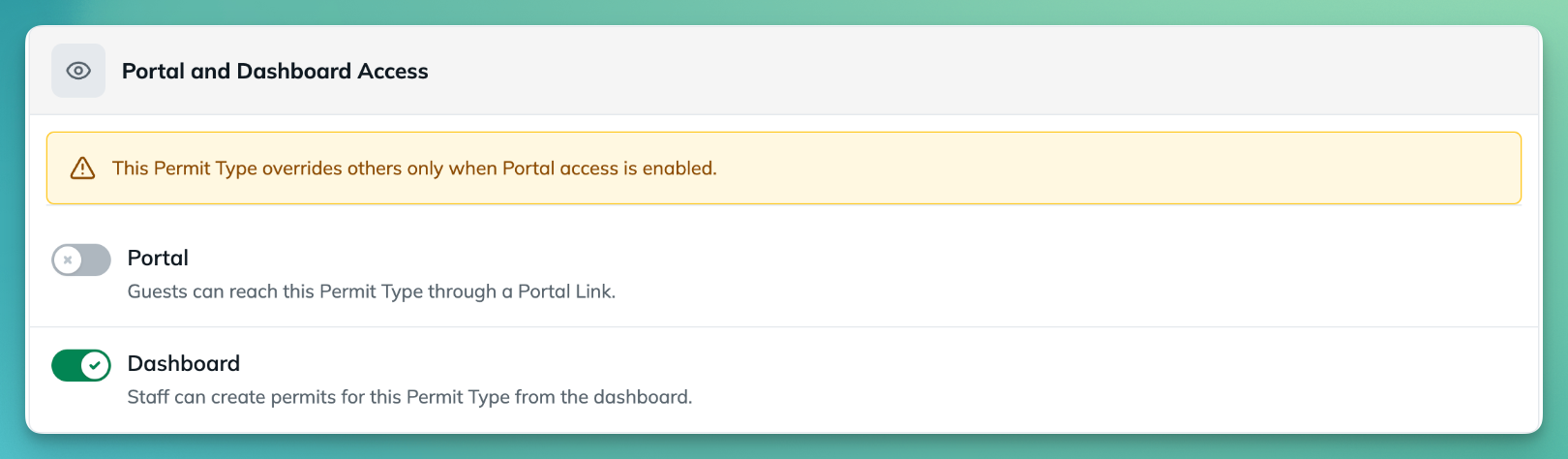
- If parkers still see the permit type you meant to override, check that Portal access is on for the overriding permit type. When it is off, the Dashboard warns This Permit Type overrides others only when Portal access is enabled.
Why It Matters
- Nothing gets missed. Special periods sit outside the daily routine, which makes them the easiest to forget. A configured override fires on its own schedule.
- Parkers cannot buy the wrong thing. Without an override, someone can register for a $5 daily permit on a night the lot is selling $40 event parking.
- Your regular permit types stay intact. Nothing is disabled, edited or rebuilt — pricing, codes and history are untouched.
How It Works
Before you begin
An override runs entirely off the overriding permit type's schedule, so that schedule has to be a fixed, bounded window. Each relevant parking option needs:
- At least one Location
- A Specific Date or Date Range schedule
- Explicit start and end times
A few structural rules also apply:
- A permit type cannot both override others and be overridden. It is one or the other.
- Several overriding permit types can target the same regular permit type.
- Overrides apply to Permit Types only. Events can't override Permit Types, and Permit Types can't override Events.
When an override is active
An override is live only while the overriding parking interval is live — from its configured start time to its configured end time. Two details matter:
- It is judged on the current time, not the date a parker is shopping for. Someone browsing on Monday for Friday's game night sees Friday's regular parking as normal, because the override is not live yet.
- Touching at the endpoints is not an overlap. Parking ending at exactly 5:00 PM is not suppressed by an override beginning at 5:00 PM.
What parkers see
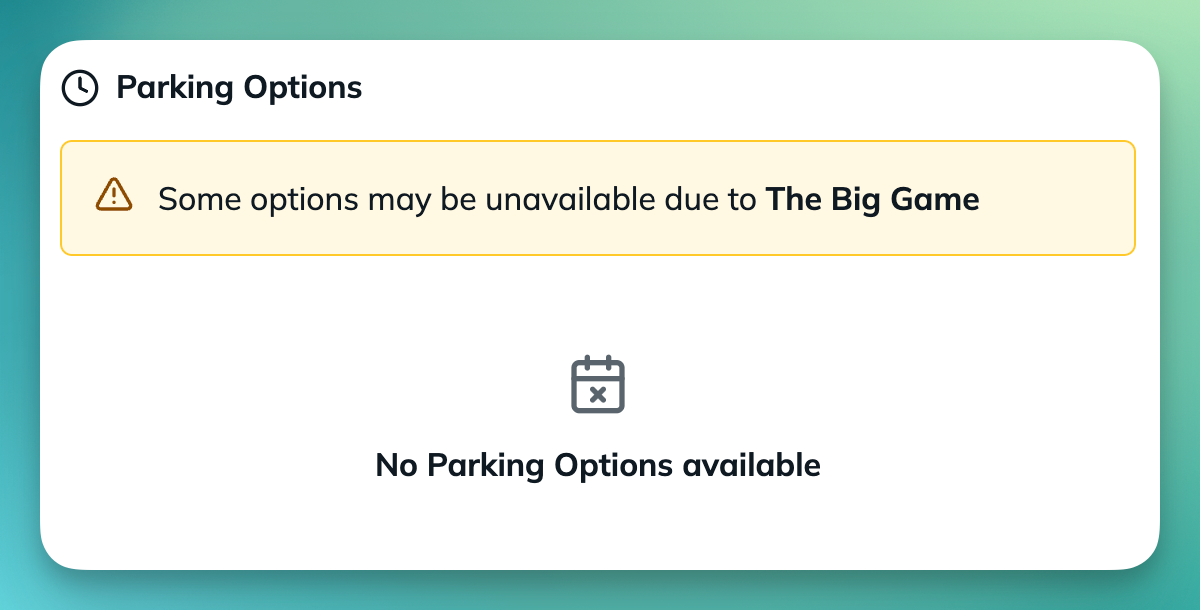
Hidden targets are removed from the portal entirely:
Unavailable targets stay visible, marked Unavailable:
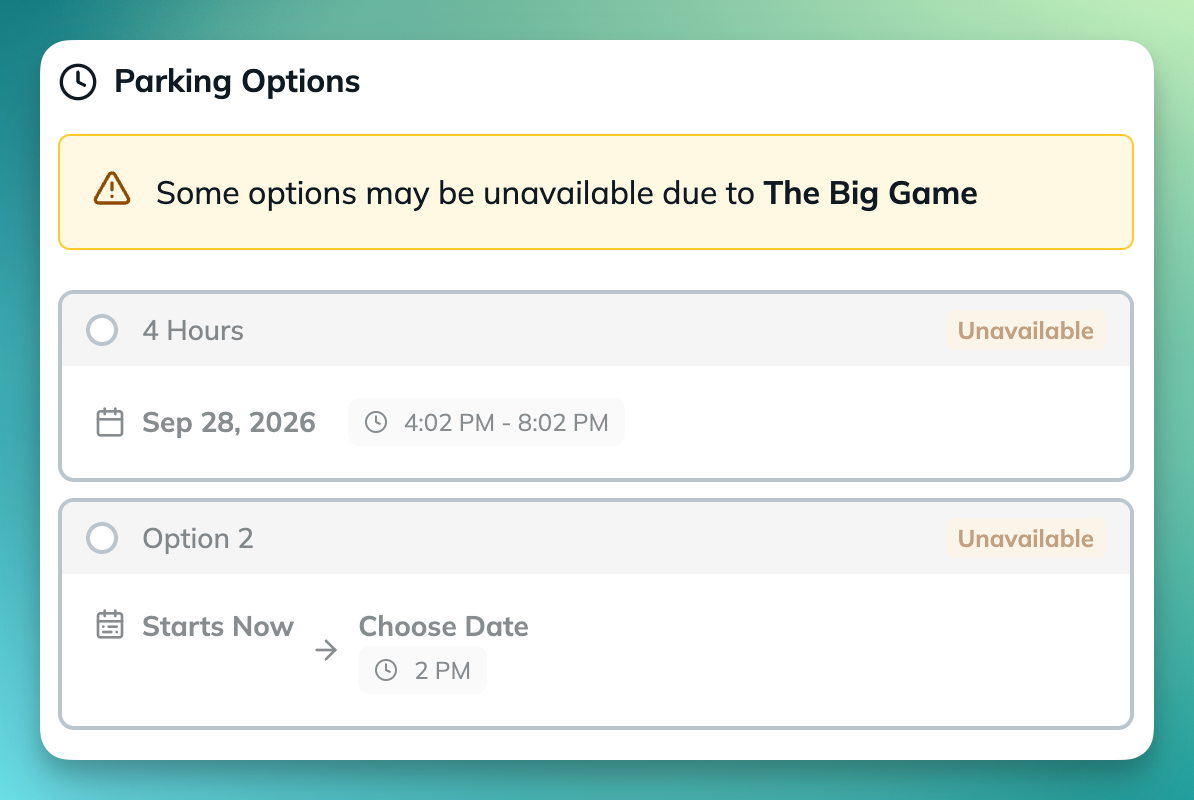
- If only some options on a permit type are affected, it stays selectable and shows Limited options available.
- If every option is unavailable, the permit type card is disabled; if every option is hidden, the permit type disappears.
- Where two overrides affect the same target, hiding wins.
- The overriding permit type is shown ahead of regular permit types wherever it is available to that parker.
- While an override is active, parkers see an override notice in the portal. It does not appear when no override is live.
- Overrides also work with kiosk-mode Portal Links.
Step-by-Step Guide
- Create or open the overriding permit type.
- In the Parking section, check that every relevant parking option has a Location and a fixed schedule with a start and end time.
- Turn on Override other Permit Types when schedules overlap.
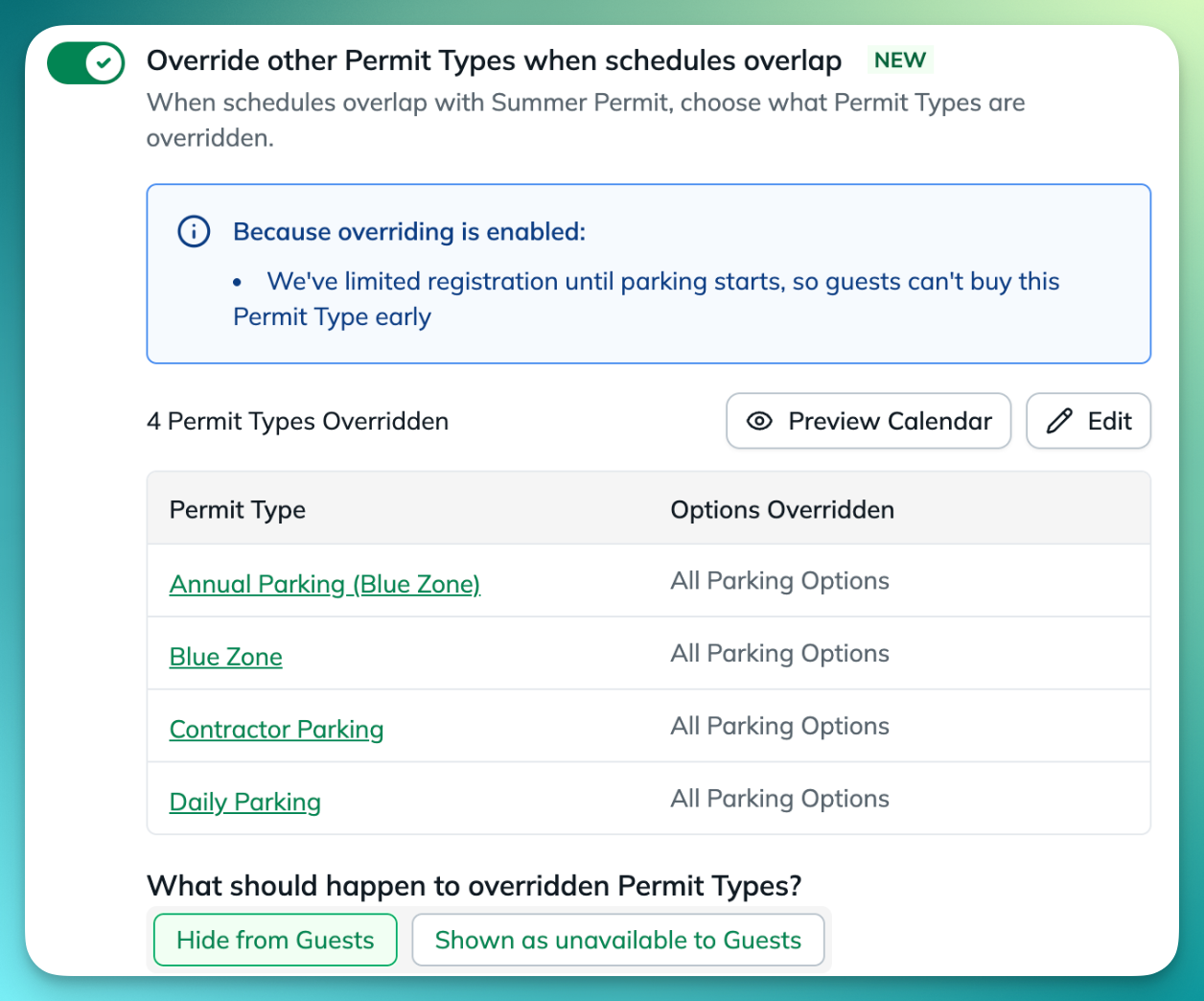
- Review the suggested permit types. Suggestions come from shared Locations — a shared Location alone does not mean the override will apply. Use the search and location filters to find a permit type, or use select-all and deselect-all to choose several at once.
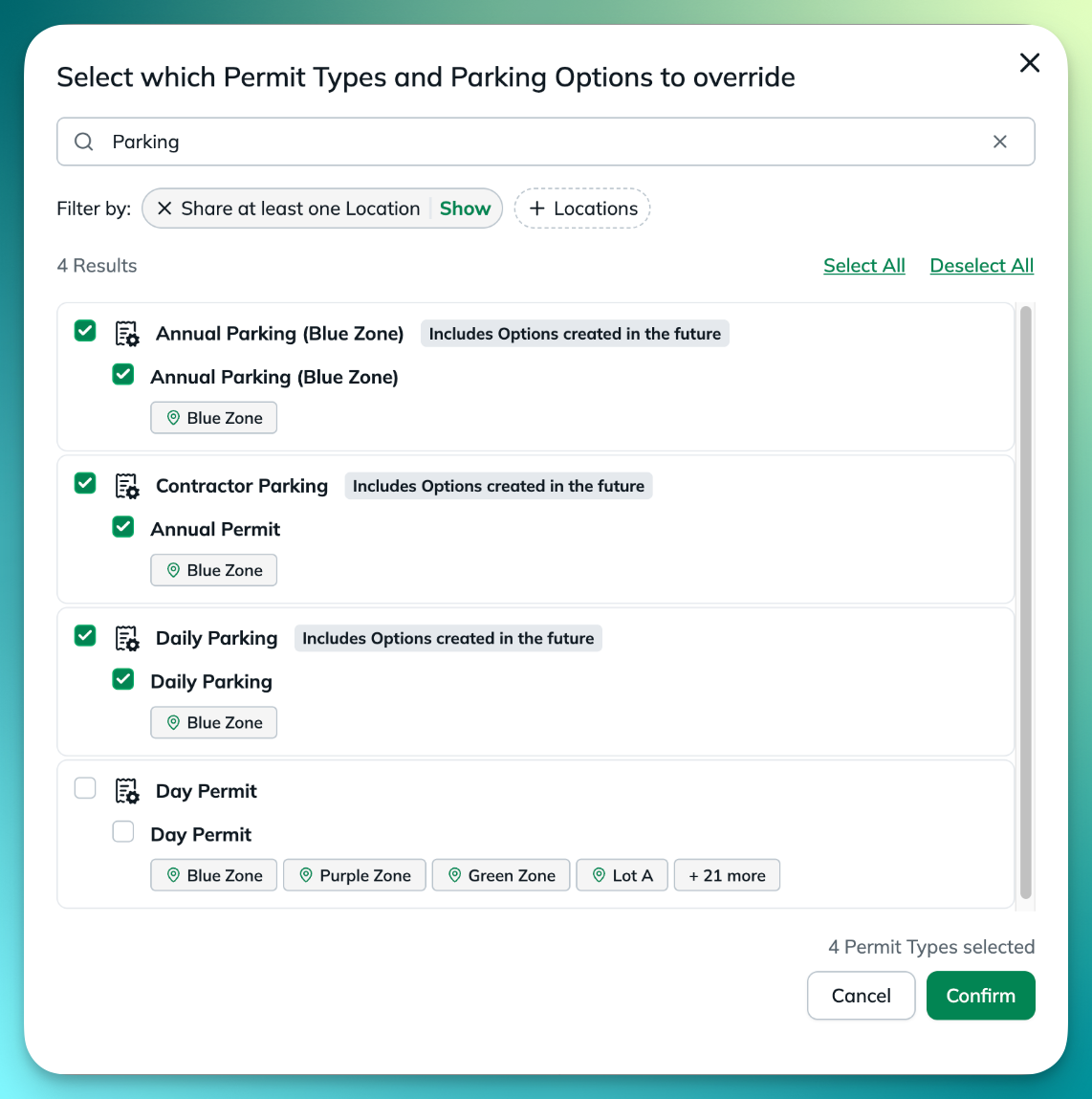
- Choose what to suppress:
- A whole permit type covers all of its current parking options and any added later.
- An individual parking option affects only that one; future options are not picked up automatically.
- Choose how the targeted parking appears: Hide from Parkers, or Shown as unavailable to Parkers when it helps parkers to see that their usual option exists but cannot be selected right now.
- Select Preview Calendar, beside Edit under the Permit Types you chose to override, and confirm the two parking periods genuinely overlap.
- Save the permit type.
Permit types that override others show an overriding badge in the Permit Types list, and you can filter the list to overriding permit types.
Availability Window versus the override schedule
These two settings are easy to confuse and they do different jobs:
Because they are separate, an override can suppress regular parking while the special permit type is not open for registration — leaving parkers with no usable option at all. Check both before you save.
Use Cases
- Game day or events. Higher-priced event parking takes the place of regular daily parking for the evening.
- Clearing a lot. Hide employee or tenant parking while a special option is active, so the spaces go to the group the period is meant for.
- Holidays and venue closures. Make regular parking unavailable across the period while offering a permit type built for it — leaving it visible but unavailable tells parkers what is going on.
- Swapping out one option. Replace a single parking option inside a permit type — one lot, say — while its other options carry on as usual.
What Overrides Are Not For
Overrides suppress parking on a schedule. They are not a pricing engine:
- Repricing an existing option. To charge a different rate, offer a separate permit type at that rate and suppress the regular one.
- Dynamic, demand-based or early-bird pricing. Overrides do not adjust prices based on demand or on when someone buys.
- Changing permits already issued. Overrides never cancel, reprice, shorten or move an existing permit.
Troubleshooting
I can't delete a portal link
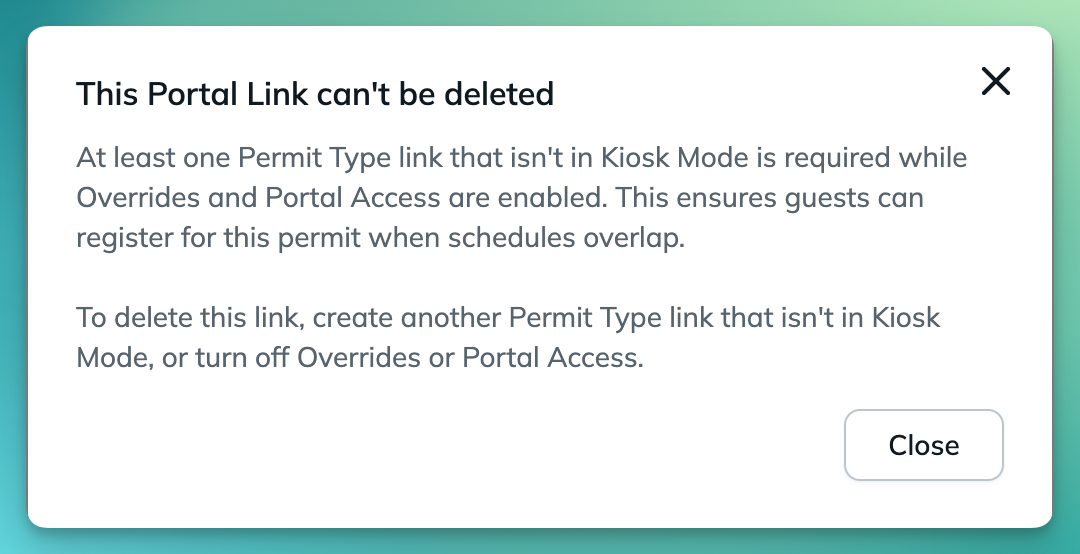
A Permit Type that overrides others needs at least one Permit Type link that isn't in Kiosk Mode while Overrides and Portal access are on, so guests can still register when schedules overlap. If you try to delete that last link from the Portal links tab, the Dashboard shows This Portal Link can't be deleted. To delete it, create another Permit Type link that isn't in Kiosk Mode first, or turn off the override or Portal access.
The override is not activating
Check the overriding parking option has a specific-date or date-range schedule with fixed start and end times, and that the current time falls inside it. Then confirm the targeted option overlaps — intervals meeting at an endpoint do not count.
The wrong parking is still showing
Check whether you selected the whole permit type or an individual option; they behave differently for options added later. Also check whether the target's own settings or schedule make it visible independently.
Parkers cannot see the special parking
An active override does not make the special permit type visible or purchasable on its own. Check its portal visibility, tenant eligibility, availability window and Portal Link context.
Regular parking is hidden when I asked for unavailable
Check the targeted permit type's own setting for unavailable options. A permit type set to hide its unavailable options will hide them, even when the override asks for them to be shown.
FAQs
Should I target the whole permit type or a single option?
Target the whole permit type when everything under it should be suppressed, including options you add later. Target an individual option when only one needs to go — but you will have to add any new ones yourself.
Should I hide the regular parking or show it as unavailable?
Hide it when the special parking is a clean replacement and the old option would only confuse people. Show it as unavailable when parkers know the regular option exists and would otherwise wonder whether something is broken.
Can two permit types override the same parking?
Yes. If their active periods overlap and they disagree on presentation, hiding takes precedence.
A parker is shopping for a future date. Will they see the override?
Not unless the override is live at that moment. Overrides are evaluated against the current time, so a parker browsing in advance sees the regular options.
How do I turn an override off?
Switch off Override other Permit Types when schedules overlap and save. The targeted parking returns to normal. Any registration window that enabling overrides added stays — clear it separately.
Does the overriding Permit Type need the same Tenants as the parking it overrides?
It isn't required, but it's strongly recommended. Overrides aren't limited by Tenant: while an override is active, the targeted parking is hidden or shown as unavailable for every parker, including parkers whose Tenant can't register for the overriding Permit Type. Make the overriding Permit Type available to the same Tenants as the parking it replaces, or those parkers can be left with no usable option while the override is live.
Need Help?
Reach out to the Offstreet support team using the Support form here: Client Support
Was this article helpful?
That’s Great!
Thank you for your feedback
Sorry! We couldn't be helpful
Thank you for your feedback
Feedback sent
We appreciate your effort and will try to fix the article