Existing Permit Updates
Retroactively apply parking rules or configuration changes to existing permits and notify guests!
Overview
Existing Permit Updates let you apply a change you make to a permit type or event to the permits that guests already hold. When you save a change that affects existing permits, a Confirm changes window asks what should happen to them: update them or leave them alone, and whether to email the guests about it.
Normally a change only reaches permits created after you save. With Existing Permit Updates you can extend an event by a day, move guests to a different lot, or retire a parking option without editing permits one by one. It works the same way for permit types and for events.
How it works
When the Confirm changes window appears
The window opens when you save a permit type or event, or publish a draft, and you have changed any of the following on a parking option that already has permits:
- The dates and times of the option
- The locations of the option
- The option has been removed
On events, this window replaces the earlier “Change Date and Time?” warning.
While you are editing, a blue banner in the Parking section tells you how many existing permits may be affected. The number only counts permits on the options you changed, and some of them can still be skipped when the update runs (see Permits that are skipped or fail below).
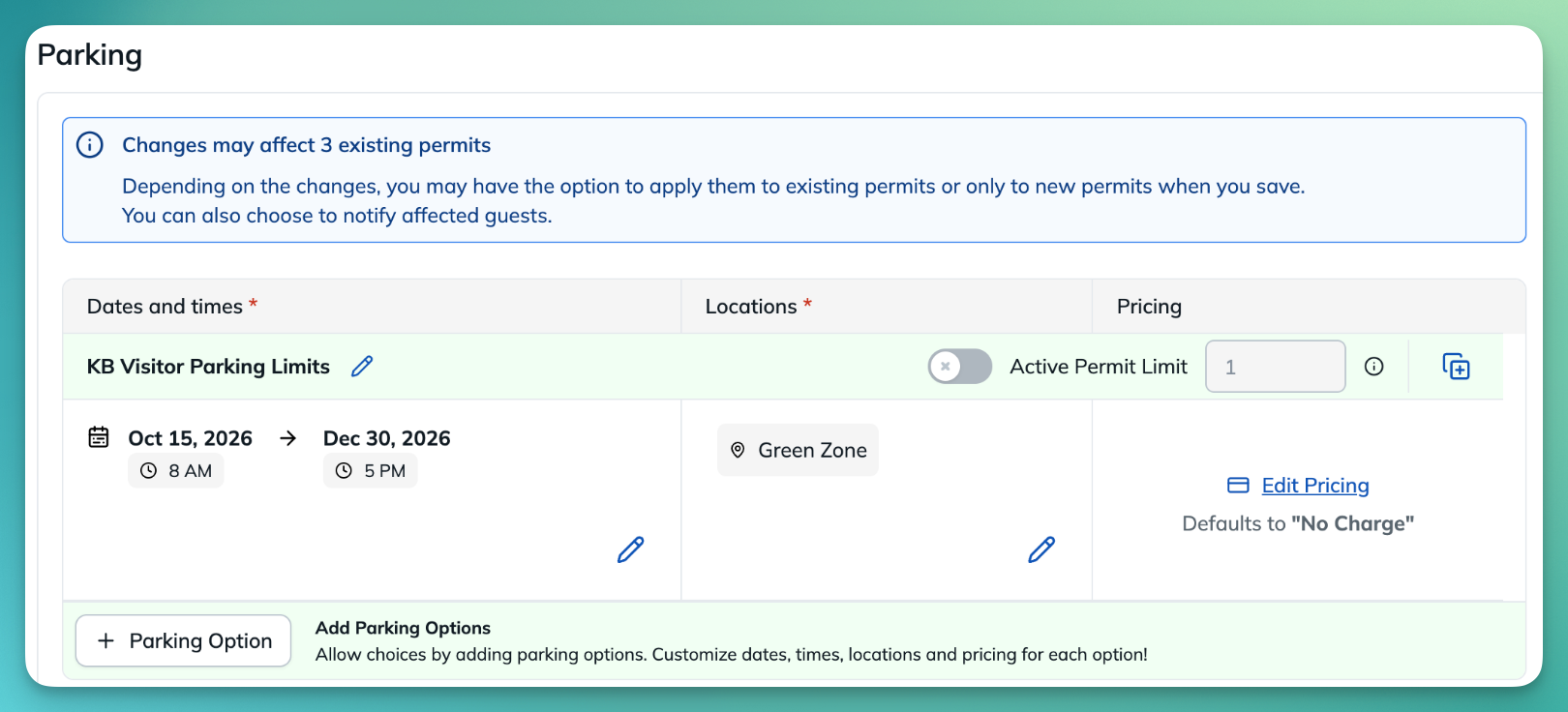
Changes that do not affect existing permits, such as a price-only change, do not open the window.
What the window shows
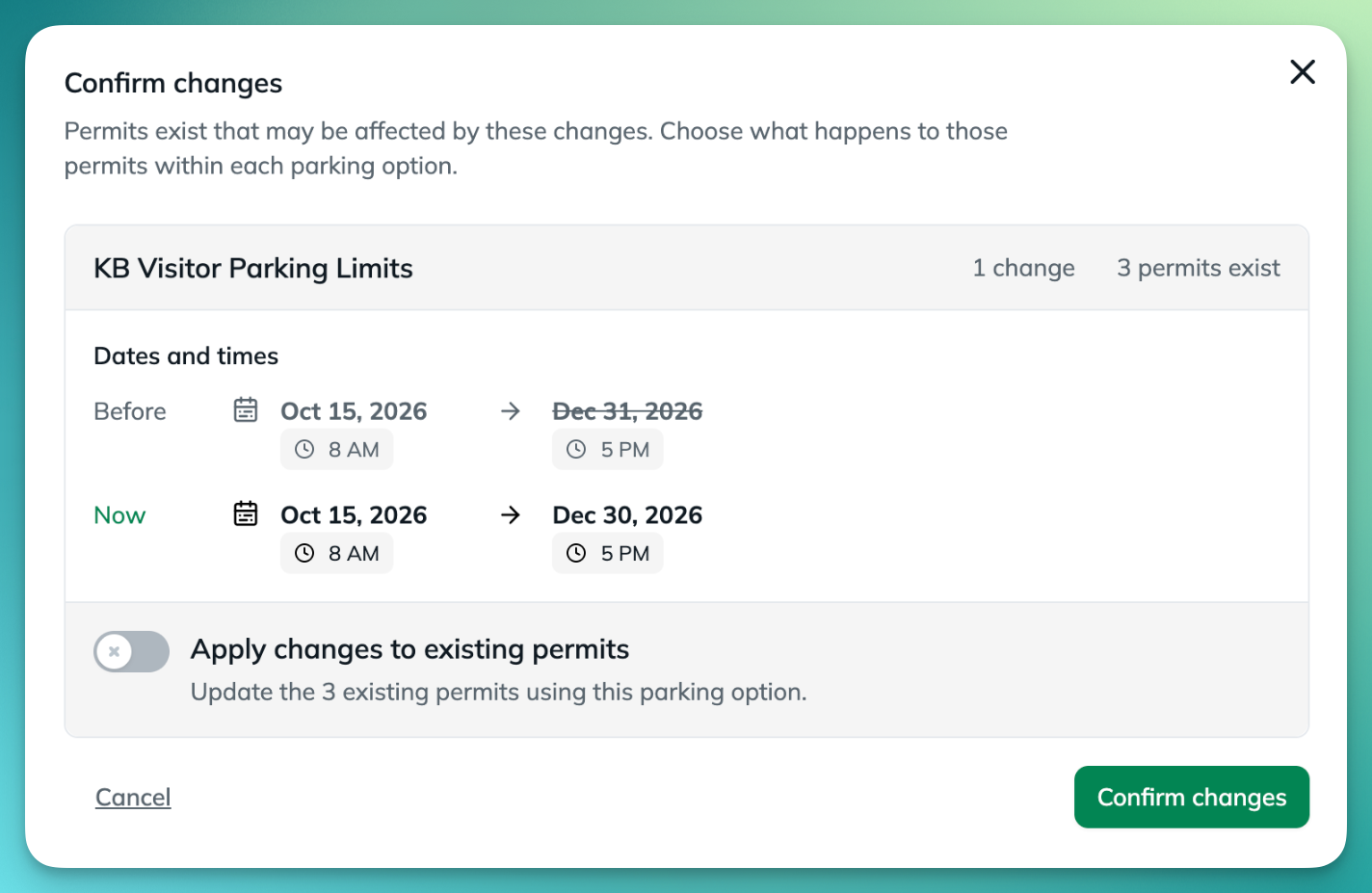
For each option you changed, the window shows how many changes you made, how many permits exist on that option, and a Before and Now comparison. The old value is crossed out. The Apply changes to existing permits switch is off by default.
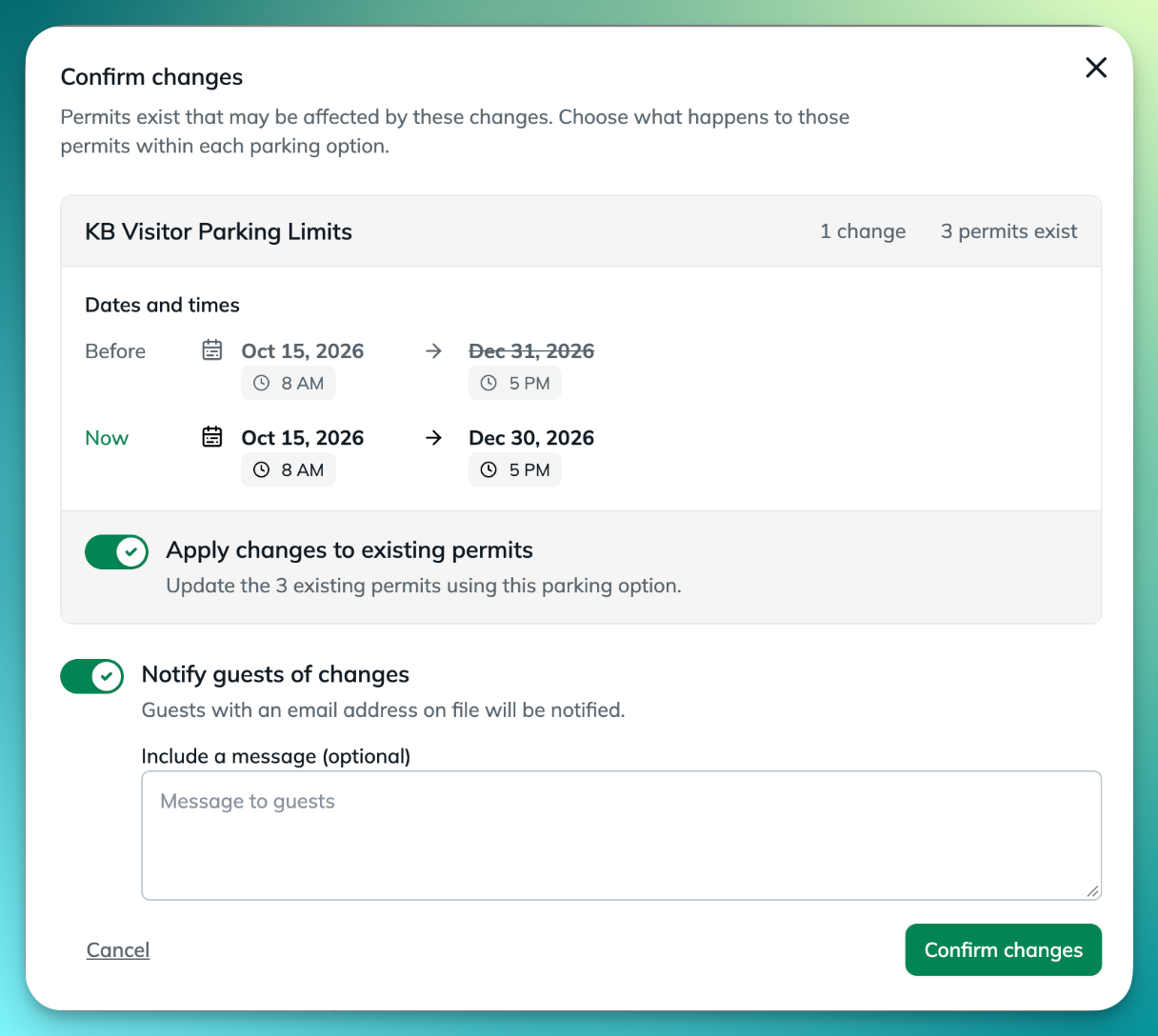
Turn Apply changes to existing permits on and the window shows any extra choices for that change, plus the Notify guests of changes switch. When Notify is on you can add a message that goes out with the email.
What can be updated
Removing a parking option
When you remove a parking option, new guests can no longer select it. For permits that already exist, you can pick one of three outcomes:
- Allow them to use the removed option. The default. The permits stay valid and nothing changes for those guests. In the Permits list they carry a Parking option deleted badge.
- Select a different option for them. Choose another option from the drop-down and the permits move to it.
- Cancel these permits. The permits are voided. The window reminds you with “These permits will be voided.” No refund is issued.
If you remove several options in one save, each one gets its own choice.
Notifying guests
Turn on Notify guests of changes to email the guests whose permits were affected. Offstreet recommends it whenever a permit has changed. A few things to know:
- Only email is sent. No text message goes out about the update. Existing reminder emails and texts move to the permit's new end time, or are cancelled if the permit is cancelled.
- Only guests with an email address on file are notified. That means guests who registered through the parking portal and entered an email.
- The email tells the guest that their parking details have changed, includes your optional message and shows a What changed summary. Guests whose permit was cancelled receive a cancellation email instead.
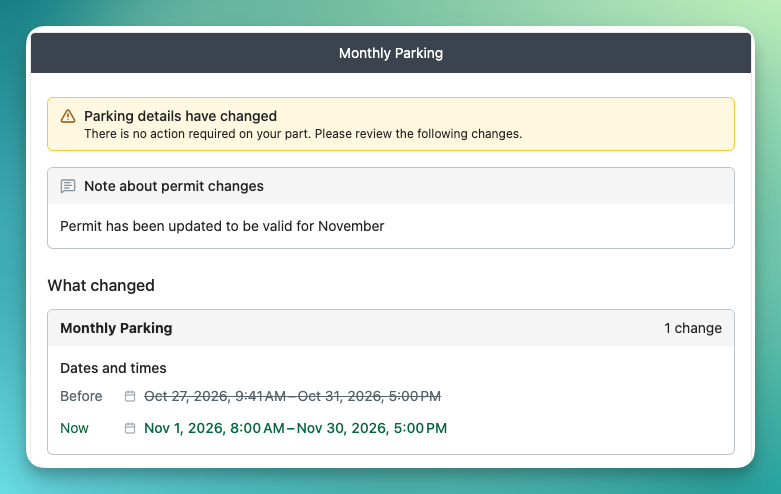
- Notify applies to the whole save. If you only want to notify some groups, make the changes in separate saves.
Progress and results
After you select Confirm changes, progress appears in the corner of your screen. You can keep working while it finishes. The larger the update, the longer it will take to update.
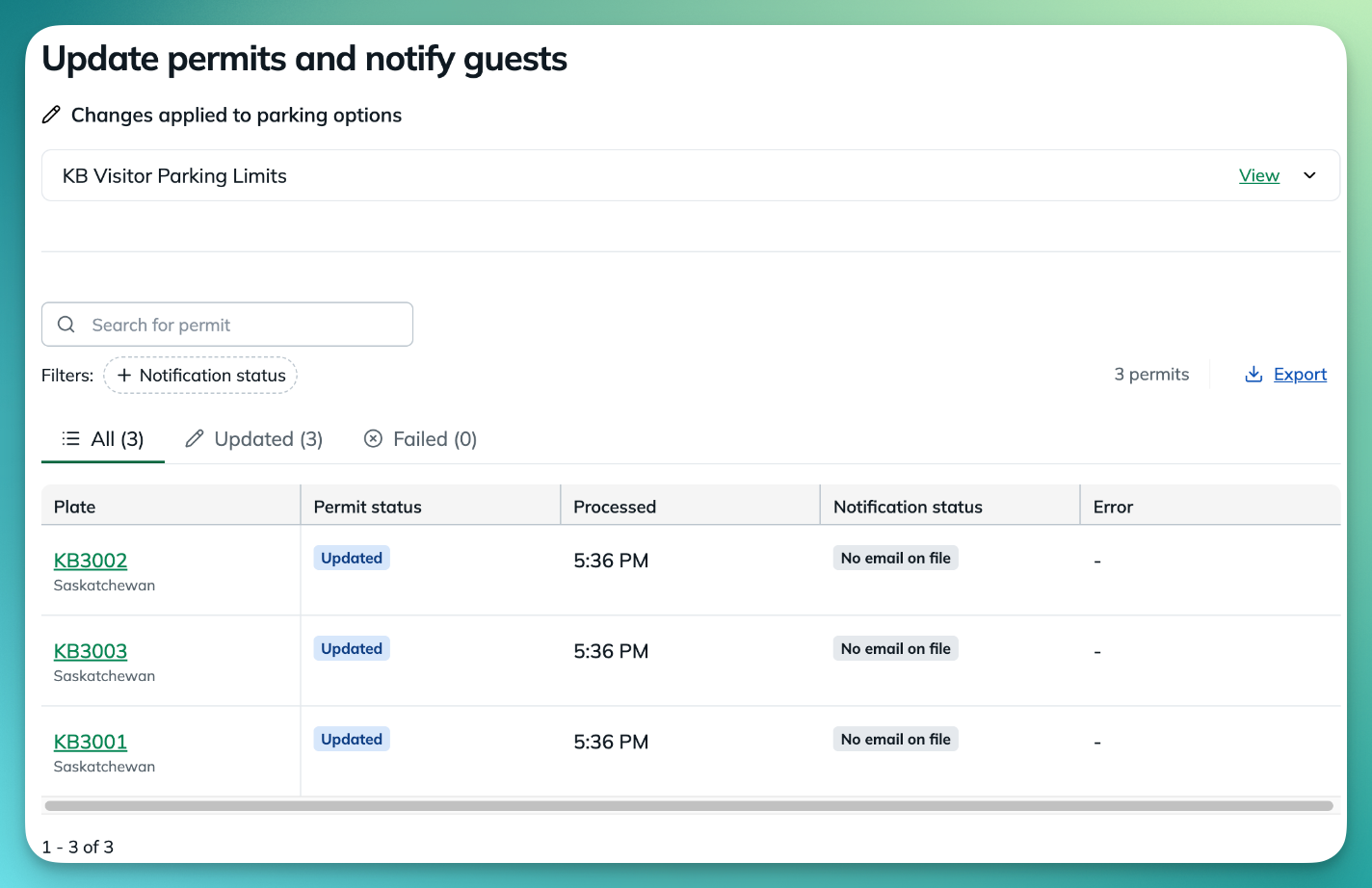
When it is done, select View update to open the results page. It is titled Update permits, or Update permits and notify guests when you notified guests.
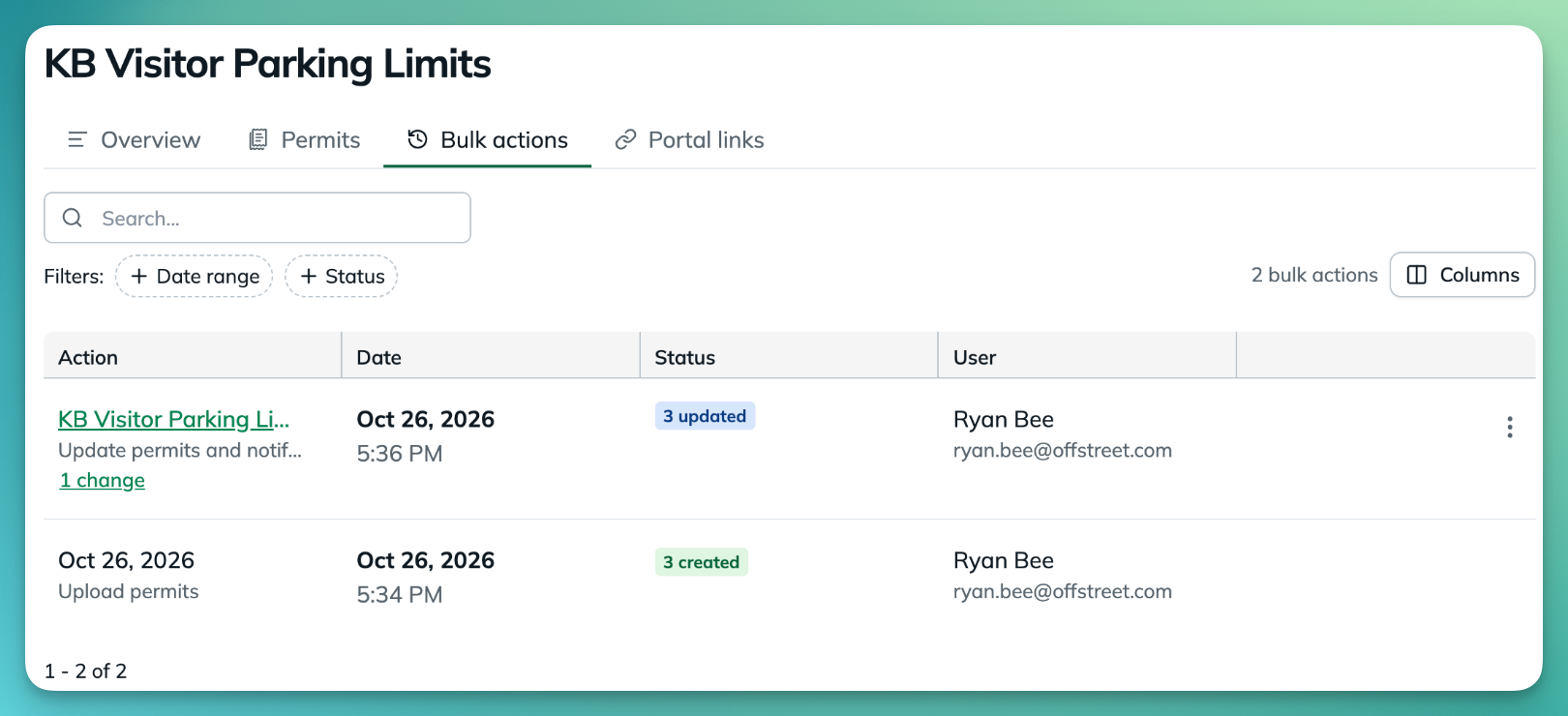
Every update is also kept on the Bulk actions tab of the permit type or event, so you can open it again later.
Permits that are skipped or fail
Some permits cannot be updated. They are never left half-changed. They show up on the results page with a reason.
A permit is marked Unchanged when:
- The option has more than one date range.
- The permit's location is no longer offered on the option.
- The new rules leave no valid dates for that permit.
- Applying the option's rules would shift the permit's dates, so the permit keeps its current dates.
- The option was changed again after this update was saved.
- The permit expired before the update reached it.
A permit is marked Failed when the update ran into a problem for that permit:
- Capacity reached. The new setting would put the option over a limit, such as its Active Permit Limit.
- Rule blocked update. The new dates or location would break another rule on the option.
- Permit changed during update. The permit was edited while the update was still running.
Fix the cause, then use Retry on a single permit or Retry all on the Failed tab to run those permits again.
Permissions
To apply a change to existing permits you need permission to edit the permit type (or event) and permission to edit permits on every location and tenant the change affects.
Step-by-step guide
Update the permits on a permit type
- Go to Permits > Permit Types and open the permit type.
- In the Parking section, select Edit.
- Make your change: use the pencil under Dates and times or Locations on the option, or remove the option. The blue banner shows how many existing permits may be affected.
- Scroll to the bottom of the page and select Save. The Confirm changes window opens.
- Check the Before and Now values for each option.
- Turn on Apply changes to existing permits to update the permits that already exist. Leave it off to apply the change to new permits only. If extra choices appear, such as what to do with expired permits, pick one.
- Optional: turn on Notify guests of changes and add a message.
- Select Confirm changes.
- Watch the progress message in the corner. You can keep working while it finishes.
- When you see Permits updated!, select View update to review the results, or open the Bulk actions tab later.
Update the permits on an event
Events work the same way. Go to Events > Event List, open the event, select Edit in the Parking section, change the option's dates, locations or remove it, then Save and follow steps 4 to 10 above.
Fix permits that failed and retry
Select View / fix errors to open the Failed tab. It shows the permit, the reason and a Retry link.
Raise the limit (or fix whatever caused the error), then select Retry. The permit is run again and the results update.
Use cases
Extend or shorten a date range
An option runs Oct 16 to Oct 17 and you extend it to Oct 19. The window shows the old end date crossed out and the new one beside it. With Apply switched on, the permits on that option are updated.
After the update, the permits show the new end date.
Shortening works the same way. When you shorten a range and notify guests, the results page shows who was emailed. Guests with an email on file show Notified. Permits created from the dashboard show No email on file.
Change how long a permit lasts
An hourly option that starts when the guest registers and lasts 4 hours is changed to 6 hours.
Each permit's new expiry is worked out from its own start time. Permits on other options are not touched.
Move guests to a different location
A fixed-location option is switched from one lot to another. With Apply on, the permits on that option move to the new lot.
Remove a lot that guests could choose
On an option where guests choose their lot, you remove one of the lots. The window asks for a replacement lot for the permits in the removed lot. Only those permits are updated. The rest are shown as Unchanged because their lot is still offered.
Reactivate permits that have expired
An option's duration is extended from 10 minutes to 3 hours, but some permits had already expired. The window asks what to do with them. Reactivate these permits lets guests park again if the new dates have not passed. Leave permits as expired applies the new dates to permits created from now on only.
The reactivated permits are Active again, with expiries recalculated from their own start times.
Guests who choose their own start or expiry
When guests choose part of the expiry for an option, existing permits keep their current dates. The window says so, and there is nothing to switch on for that option.
Remove a parking option
When you remove an option that has permits, you decide what happens to them. This example removes a Visitor Pass option. The default is to let the permits keep using it.
Cancel these permits voids them and, with Notify on, emails the guests who have an email on file. The results page shows each permit as Voided.
You can remove several options in one save and give each its own outcome. Here Short Pass is left on Allow them to use this option, and Own Start moves its guests to Fixed Lot.
Permits that were kept stay valid and show a Parking option deleted badge in the Permits list.
Troubleshooting
The Confirm changes window did not appear
The window only opens when you save a change that can affect existing permits: new dates and times, new locations or a removed option, on an option that already has permits. A price-only change or a change to an option with no permits saves without it. If you made one of those changes and still see no window, contact the Offstreet support team.
The Apply changes to existing permits switch is greyed out
You need permission to edit the permit type (or event) and to edit permits on every location and tenant the change affects. Ask an administrator on your team to update your permissions or to make the change.
Some permits show Unchanged
Open the results page. Permits are left unchanged when the change did not apply to them (for example, their lot is still offered), when guests choose their own dates on that option, or when the option has more than one date range. The full list of reasons is under Permits that are skipped or fail above.
Some permits show Failed
Check the Error column. Fix the cause, such as raising a limit, then select Retry or Retry all on the Failed tab.
I cannot save a change while an update is running
Only one update that affects permits can run at a time. Wait for the first update to finish (the progress message in the corner tells you when), then save again.
FAQ
Will guests be charged or refunded when I change a price or cancel permits?
No. Existing Permit Updates never charges or refunds. Price changes do not affect permits that have already been issued. Cancelling permits does not issue a refund, so handle refunds separately in the way you normally would.
Who receives the notification email?
Only guests with an email address on file, and only when you turn on Notify guests of changes for that save. Guests who registered through the parking portal and entered an email are notified. Permits created from the dashboard show No email on file on the results page.
Do guests get a text message?
No. Only email is sent about an update. Existing reminder emails and texts move to the permit's new end time, or are cancelled if the permit is cancelled.
Can I undo an update?
There is no undo button. To reverse a date or location change, make the change back and apply it to existing permits again. Treat cancelling permits as final.
What if I already edited some permits by hand?
Permits you edited yourself are not protected. If they are on an option that you change and apply, they are updated like the rest.
Can I notify only some of the guests?
Notify applies to the whole save. To notify some groups and not others, make the changes in separate saves and choose Notify for each one.
Can I create a new option and move permits to it in the same save?
No. Save the new option first. Then make a second change, such as removing the old option, and choose the new option for the existing permits.
What happens to guests who register after I remove an option?
The option is gone for new guests as soon as you save, whatever you choose for the permits that already exist.
Where can I find an earlier update?
Open the permit type or event and select the Bulk actions tab. Select the name of an update to see its results page again.
Does it change settings other than dates, locations and options?
No. Existing Permit Updates only applies changes to a parking option's dates and times, its locations, and the removal of an option. Other settings, including price, only affect new permits.
Need Help?
Reach out to the Offstreet support team using the Support form here: Client Support
Was this article helpful?
That’s Great!
Thank you for your feedback
Sorry! We couldn't be helpful
Thank you for your feedback
Feedback sent
We appreciate your effort and will try to fix the article